
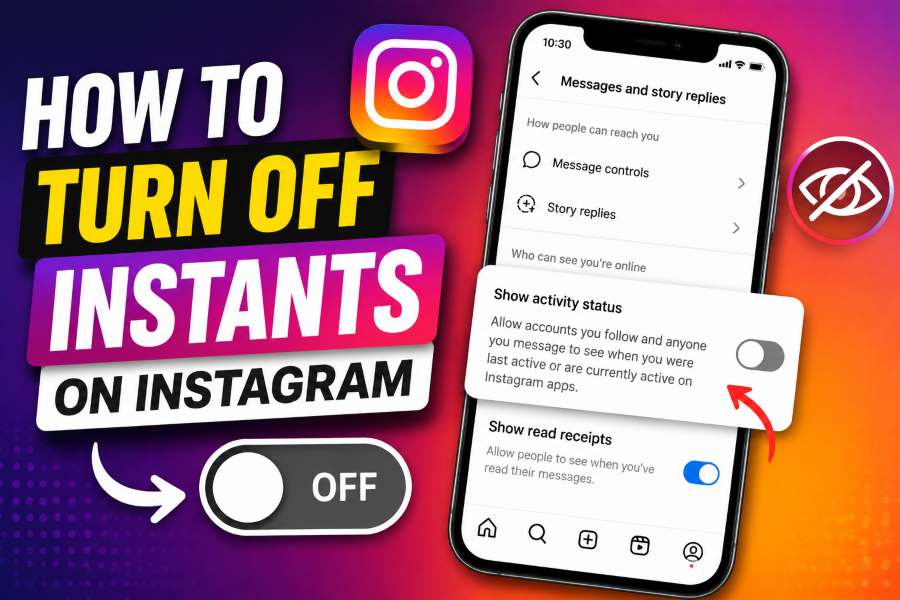
Instagram regularly introduces new features designed to make conversations and content sharing faster. One of its latest additions is called Instants, a photo-sharing feature that lets users capture and immediately share disappearing pictures with selected people.
Although Instants can make casual photo sharing easier, not everyone wants the feature appearing inside their Instagram inbox. Some users find the photo stack distracting, while others worry about accidentally sending an unedited photo to multiple people.
Fortunately, Instagram includes an option that lets you hide the feature from your inbox. In this guide, you will learn how to turn off Instants on Instagram, temporarily pause them, remove an accidentally shared Instant, and troubleshoot the setting when it does not appear.
What Are Instants on Instagram?
Instants are spontaneous photos that users can capture and share directly from the Instagram inbox. The feature is designed for quick, casual moments rather than carefully edited feed posts or Stories.
Instagram officially introduced Instants in May 2026 as a way for users to share real-life moments as they happen. Instants appear through a small stack of photos inside the Direct Messages inbox. Tapping the stack opens a camera interface where users can take and immediately share a photo. 3
Unlike normal Instagram posts, Instants are intended to be temporary. They are designed to disappear after being viewed and are not presented as permanent content on your profile grid.
Before taking a photo, Instagram allows users to choose between two audiences:
- Friends
- Close Friends
The Friends option may include people who follow you and whom you also follow, depending on how Instagram defines your connected audience. The Close Friends option limits the Instant to people included in your Close Friends list.
One important detail is that tapping the camera shutter can immediately share the photo with the selected audience. There may not be a normal editing or confirmation screen before the image is sent. This instant-sharing design is one reason many users want to disable or hide the feature. Answer: How to Turn Off Instants on Instagram
To turn off Instants on Instagram:
- Open the Instagram app.
- Tap your profile picture.
- Tap the three-line menu in the upper-right corner.
- Open Content preferences.
- Find Hide Instants in Inbox.
- Turn on the toggle.
After enabling this setting, the Instants stack should disappear from your Instagram inbox. You should also stop seeing Instants that other people send to you. ing can feel confusing because you are turning on a setting to turn off a feature. Remember that you need to enable Hide Instants in Inbox, not disable it.
How to Turn Off Instants on Instagram Step by Step
The following instructions explain the process in more detail.
Step 1: Open the Instagram App
Open the Instagram application on your Android phone or iPhone.
Make sure you are logged into the account where you want to hide Instants. Instagram settings can be account-specific, so changing the option on one profile may not automatically change it on another account.
Step 2: Go to Your Instagram Profile
Tap your profile picture in the bottom-right corner of the screen.
This will open your Instagram profile page, where you can access your posts, followers, account details, and settings.
Step 3: Open the Instagram Menu
Tap the three horizontal lines in the top-right corner of your profile.
Depending on your version of Instagram, this section may be called Settings and activity, Settings and privacy, or simply the account menu.
Instagram occasionally changes the names and organization of its settings pages, but the main navigation process should remain similar.
Step 4: Select Content Preferences
Scroll through the menu and tap Content preferences.
This section contains controls for managing some of the content and features that appear across Instagram.
If you cannot immediately find Content preferences, use the settings search bar and search for one of these terms:
- Instants
- Hide Instants
- Content preferences
Using the search function is often faster than manually scrolling through the full settings page.
Step 5: Enable Hide Instants in Inbox
Look for the option labeled Hide Instants in Inbox.
Turn on the toggle next to this option. Instagram should then remove the Instants stack from your Direct Messages inbox.
This is currently the main method for users searching for how to turn off Instants on Instagram. Instagram describes the setting as hiding the feature rather than permanently deleting it from your account. 6: Check Your Instagram Inbox
Return to the Instagram home screen and tap the Messages icon.
The Instants photo stack should no longer appear in your inbox. You should also stop seeing incoming Instants from other users while the hide setting remains enabled.
If the feature is still visible, completely close Instagram and reopen the app. You can also restart your phone or update Instagram before checking again.
Does Hiding Instants Completely Disable the Feature?
The setting is called Hide Instants in Inbox, which means Instagram presents it as a visibility control rather than a permanent account-level deletion.
When the setting is enabled, the Instants area should disappear from your inbox, and you should no longer see Instants sent by other people. According to current reports, this effectively removes the feature from your regular Instagram messaging experience. Instagram may continue to support Instants as part of the platform. The setting does not necessarily erase the feature from Instagram’s systems or prevent the company from changing how it works in a future update.
You can restore Instants later by returning to Content preferences and turning off the Hide Instants in Inbox setting.
How to Temporarily Pause Instants
You do not have to completely hide Instants if you only want a temporary break.
Instagram provides a snooze-style option that lets you pause incoming Instants from the inbox.
To temporarily pause Instants:
- Open your Instagram inbox.
- Press and hold the stack of Instants.
- Swipe the stack toward the right.
- Follow the on-screen option to pause or snooze the feature.
This temporarily stops Instants from appearing without requiring you to hide the feature through the main settings menu. Instagram’s announcement and current guides describe this gesture as a way to temporarily stop seeing Instants.
This option may be useful when you normally enjoy the feature but do not want to receive spontaneous photos during work, study time, travel, or other busy periods.
How to Undo an Instant You Shared by Mistake
Because Instants are shared quickly, it is possible to take and send a photo before realizing who will receive it.
Instagram may show an Undo option immediately after an Instant is sent. Tap Undo as quickly as possible to retract the photo.
The Undo button normally appears below the shutter button after the Instant has been shared. It may only remain visible for a limited period, so you should act immediately.
If the Undo option is no longer available, you may be able to remove the Instant through your archive.
To delete a sent Instant:
- Open the Instants camera.
- Tap the four-box archive icon in the upper-right corner.
- Find the Instant you want to remove.
- Open the photo.
- Choose the delete or unsend option.
Deleting the Instant may remove it for recipients who have not opened it yet. However, it may not reverse the action for someone who has already viewed the photo. reason, always check whether the audience selector says Friends or Close Friends before pressing the shutter button.
Why People Turn Off Instagram Instants
There are several reasons users may prefer to hide the Instants feature.
Accidental Photo Sharing
The biggest concern is the instant-send design. Users may expect to see a preview, editing page, caption field, or confirmation button before a photo is published.
With Instants, pressing the shutter can immediately send the image to the selected audience. If the audience is set to Friends, the photo may reach more people than expected.
A Cluttered Inbox
Instagram’s inbox already includes private messages, Notes, shared Reels, posts, group conversations, message requests, calls, and business notifications.
Adding another photo stack can make the inbox feel crowded, especially for people who use Instagram mainly for messaging or business communication.
Privacy Concerns
Some users prefer to review every photo before sharing it. They may want to crop an image, inspect the background, cover personal information, remove location clues, or confirm who will receive it.
A fast camera-sharing tool may not fit users who prefer more control over their privacy.
Unwanted Notifications
Frequent Instants from friends can create more activity inside the inbox. Hiding the feature can reduce distractions and help users focus on regular conversations.
Limited Interest in Disappearing Photos
Some users already use Stories, Direct Messages, Vanish Mode, or other platforms for temporary photo sharing. For them, Instants may feel unnecessary.
What to Do If the Hide Instants Setting Is Missing
Instagram features and settings are not always released to every account at exactly the same time. Your device, app version, account type, region, or rollout stage may affect which options appear.
Try the following fixes if you cannot find Hide Instants in Inbox.
Update the Instagram App
Open the Apple App Store or Google Play Store and search for Instagram.
If an Update button appears, install the latest version. A newer app version may be required before the Instants controls appear.
After updating, reopen Instagram and check:
Profile → Menu → Content preferences
Restart Instagram
Close Instagram completely instead of leaving it open in the background.
Open the app again and return to the settings menu. This can refresh account features and interface changes.
Search Inside Settings
Open Instagram’s settings menu and use the search bar.
Search for:
- Instants
- Hide Instants
- Inbox
- Content preferences
The search results may take you directly to the correct option even if Instagram has moved it to a different section.
Log Out and Log Back In
Logging out and signing back in can refresh your account configuration.
Before logging out, make sure you know your password and have access to any email address, phone number, or authentication method connected to your account.
Clear the Instagram Cache on Android
Android users can try clearing Instagram’s temporary cache.
Go to:
Phone Settings → Apps → Instagram → Storage → Clear Cache
Do not select Clear Data unless you understand that it may sign you out and remove locally stored application information.
iPhone users can reinstall or offload the app if necessary, but updating and restarting Instagram should be tried first.
Check Another Instagram Account
If you manage multiple accounts, switch profiles and check whether the setting appears on another account.
Instagram sometimes rolls out features account by account. One profile may receive Instants and its controls before another profile on the same phone.
Reinstall Instagram
As a final troubleshooting step, uninstall and reinstall the Instagram app.
Reinstalling can provide a clean copy of the latest interface. However, it will not guarantee access if Instants or the hide option has not yet been enabled for your account.
Can You Turn Off Instants for One Person?
The main Hide Instants in Inbox option applies to the overall feature. It is not currently presented as a control for hiding Instants from only one specific person.
If one user is sending unwanted photos, you can consider these Instagram controls:
- Mute the account
- Restrict the account
- Block the account
- Limit message interactions
- Adjust message request settings
These actions have different effects. Muting is less restrictive, while blocking stops the person from interacting with your account through normal methods.
Before blocking or restricting someone, review Instagram’s descriptions of each setting so you understand how it will affect messages, comments, and profile visibility.
How to Turn Instants Back On
You can restore the feature at any time.
To turn Instants back on:
- Open Instagram.
- Go to your profile.
- Tap the three-line menu.
- Open Content preferences.
- Find Hide Instants in Inbox.
- Turn off the toggle.
Return to your Direct Messages inbox. The Instants photo stack should appear again if the feature is still available for your account.
If it does not return immediately, close and reopen Instagram.
Instants vs. Instagram Stories
Instants and Stories both involve temporary content, but they are designed for different sharing experiences.
Instagram Stories normally allow users to upload photos or videos, add text, use stickers, apply filters, include music, tag people, and review the content before publishing.
Instants focus on immediate camera sharing. They are intended to feel spontaneous and less edited. The image can be sent as soon as the shutter button is pressed.
Stories are also displayed near the top of the Instagram feed, while Instants are primarily connected to the Direct Messages inbox.
People who prefer editing and reviewing content before publication may feel more comfortable using Stories instead of Instants.
Privacy Tips for Using Instagram Instants
If you decide to keep Instants enabled, follow a few basic precautions.
First, check your selected audience before taking a picture. Do not assume the photo is limited to Close Friends.
Second, inspect your camera view carefully. Look for private documents, computer screens, addresses, license plates, school names, workplace details, reflections, or other sensitive information in the background.
Third, avoid capturing photos while entering passwords, handling financial information, or viewing private conversations.
Fourth, remember that disappearing content is not always completely risk-free. Even when a platform limits screenshots, another person may photograph the screen with a second device.
Finally, use the Undo option immediately if you send something accidentally.
Manage Other Instagram Recommendations
Turning off Instants only changes one part of the Instagram experience. Your Explore page, suggested posts, Reels feed, ads, and content recommendations may continue to use separate preference and activity signals.
If your recommended videos no longer match your interests, read this guide on how to reset the Facebook Reels algorithm. Although Facebook and Instagram have different interfaces, understanding how recommendation systems respond to viewing and interaction habits can help you manage your overall social media experience.
You can also visit Browsiofy for more straightforward guides covering social media features, public content tools, privacy controls, and platform settings.
Frequently Asked Questions
How do I remove Instants from my Instagram inbox?
Open your Instagram profile, tap the three-line menu, select Content preferences, and enable Hide Instants in Inbox. The Instants stack should disappear from your messages.
Can I permanently delete the Instants feature?
Instagram currently provides a hide option rather than a permanent deletion button. Enabling Hide Instants in Inbox removes the feature from your normal inbox view.
Will people know that I turned off Instants?
Instagram does not normally send other users a notification telling them that you enabled the Hide Instants setting.
Can people still send me Instants after I hide them?
Other users may still have access to their own sharing tools, but you should no longer see received Instants in your inbox while the hide option is enabled. do I pause Instants without turning them off?
Press and hold the Instants stack in your inbox and swipe right. This should temporarily pause or snooze incoming Instants.
Can I recover a deleted Instant?
A deleted or unsent Instant may not be recoverable through the normal sharing interface. Review your archive before deleting anything you may want to keep.
Why can’t I see Instants on Instagram?
The feature may not be available for your account, app version, or region. Update Instagram and check your Direct Messages inbox again.
Why don’t I have the Hide Instants option?
Instagram may still be rolling out the control to your account. Update the app, restart it, search the settings, and check again later.
Are Instants the same as Vanish Mode?
No. Instants are disappearing camera photos shared through a dedicated interface, while Vanish Mode applies to messages exchanged inside a supported chat.
Can I choose who sees an Instant?
Instagram provides audience options such as Friends and Close Friends. Always confirm the selected audience before pressing the shutter button.
Final Thoughts
Learning how to turn off Instants on Instagram only takes a few steps. Open your profile settings, go to Content preferences, and enable Hide Instants in Inbox.
Once the setting is enabled, the Instants stack should disappear from your Direct Messages area, and you should stop seeing incoming Instants. You can also temporarily pause the feature by holding the Instants stack and swiping right.
If you accidentally share a photo, use the immediate Undo option or delete the image from your Instants archive before recipients open it. Most importantly, always check whether Friends or Close Friends is selected before taking a photo.
Instagram may change menu names or feature controls in future app updates, but the Content preferences section is currently the main place to manage Instants.